> ## Documentation Index
> Fetch the complete documentation index at: https://docs.leanly.dev/llms.txt
> Use this file to discover all available pages before exploring further.
# Google Cloud Platform
> Connect your GCP project so Leanly can provision and manage infrastructure on your behalf.
Connect your GCP project by creating a single service account for Leanly — the operator account. Leanly uses it to create narrowly scoped, workload-specific service accounts as you deploy. No broader access is ever requested.
## Connect using our agent skill
The fastest way to connect your GCP project. Our agent skill walks you through the setup and configures the required service account automatically.
Connect my Google Cloud account to Leanly.
## Manual setup
If you prefer to configure the service account yourself, follow the steps below.
### Before you begin
* **GCP project access** — make sure you are logged in to the Google Cloud project you want to connect.
* **Your Leanly tenant ID** — find this in your Leanly dashboard under {/* TODO: confirm exact path */} **Settings**.
### 1. Create the operator service account
In the Google Cloud Console, navigate to **IAM & Admin**, then **Service Accounts**.
Click **Create service account** and enter a friendly name (e.g. `LeanlyOperator`), then click **Create and continue**.
Search for and add each of the following roles, then click **Continue**.
* **Service Account Admin** (`roles/iam.serviceAccountAdmin`) — create and manage workload-specific service accounts
* **Project IAM Admin** (`roles/resourcemanager.projectIamAdmin`) — bind project-level roles to those service accounts
* **Viewer** (`roles/viewer`) — read-only visibility into project resources
Under **Grant users access to this service account**, add the following as a **Service Account User**.
```
leanly-devopsengineer@leanlyhq.iam.gserviceaccount.com
```
Then click **Done**.
**Is your project part of a Google Cloud Organization?** Organization-wide policies may restrict which external identities can access your service accounts. If your organization enforces the `iam.allowedPolicyMemberDomains` constraint, you need to add an exception for Leanly's directory ID: `C03w2fsp3`. 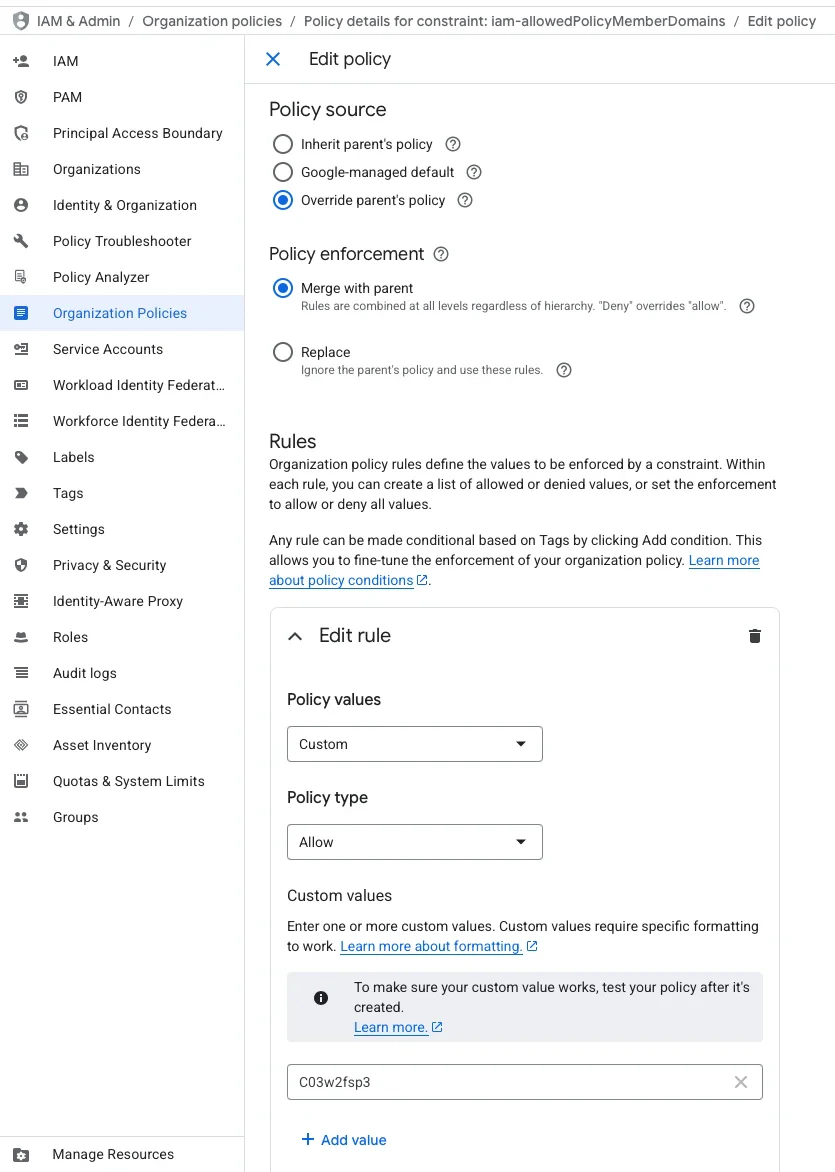 See [Google's documentation](https://cloud.google.com/resource-manager/docs/organization-policy/restricting-domains) for details.
Copy the email address of the service account you just created — you'll need it in the next step.
### 2. Connect the service account to Leanly
In your Leanly dashboard, go to **Integrations**, select **Google Cloud**, and click **Connect Account**.
Confirm that you have created the operator service account. This will reveal the service account input field.
Paste the service account email you copied and click **Connect Account**.
## Permissions
The operator service account is granted the minimum permissions needed to manage workload infrastructure on your behalf.
| Role | Why |
| --------------------------------------- | ---------------------------------------------------- |
| `roles/iam.serviceAccountAdmin` | Create and manage workload-specific service accounts |
| `roles/resourcemanager.projectIamAdmin` | Bind project-level roles to the new service accounts |
| `roles/viewer` | Read-only visibility into project resources |
See [Google's documentation](https://cloud.google.com/resource-manager/docs/organization-policy/restricting-domains) for details.
Copy the email address of the service account you just created — you'll need it in the next step.
### 2. Connect the service account to Leanly
In your Leanly dashboard, go to **Integrations**, select **Google Cloud**, and click **Connect Account**.
Confirm that you have created the operator service account. This will reveal the service account input field.
Paste the service account email you copied and click **Connect Account**.
## Permissions
The operator service account is granted the minimum permissions needed to manage workload infrastructure on your behalf.
| Role | Why |
| --------------------------------------- | ---------------------------------------------------- |
| `roles/iam.serviceAccountAdmin` | Create and manage workload-specific service accounts |
| `roles/resourcemanager.projectIamAdmin` | Bind project-level roles to the new service accounts |
| `roles/viewer` | Read-only visibility into project resources |