

Connect using our agent skill
The fastest way to connect your GCP project. Our agent skill walks you through the setup and configures the required service account automatically.Copy and run this prompt to connect your GCP project automatically.
Manual setup
If you prefer to configure the service account yourself, follow the steps below.Set up manually
Set up manually
Before you begin
- GCP project access — make sure you are logged in to the Google Cloud project you want to connect.
- Your Leanly tenant ID — find this in your Leanly dashboard under Settings.
1. Create the operator service account
1
Open service accounts
In the Google Cloud Console, navigate to IAM & Admin, then Service Accounts.
2
Create a service account
Click Create service account and enter a friendly name (e.g.
LeanlyOperator), then click Create and continue.3
Assign the required roles
Search for and add each of the following roles, then click Continue.
- Service Account Admin (
roles/iam.serviceAccountAdmin) — create and manage workload-specific service accounts - Project IAM Admin (
roles/resourcemanager.projectIamAdmin) — bind project-level roles to those service accounts - Viewer (
roles/viewer) — read-only visibility into project resources
4
Add Leanly as a service account user
Under Grant users access to this service account, add the following as a Service Account User.Then click Done.
Is your project part of a Google Cloud Organization? Organization-wide policies may restrict which external identities can access your service accounts. If your organization enforces the 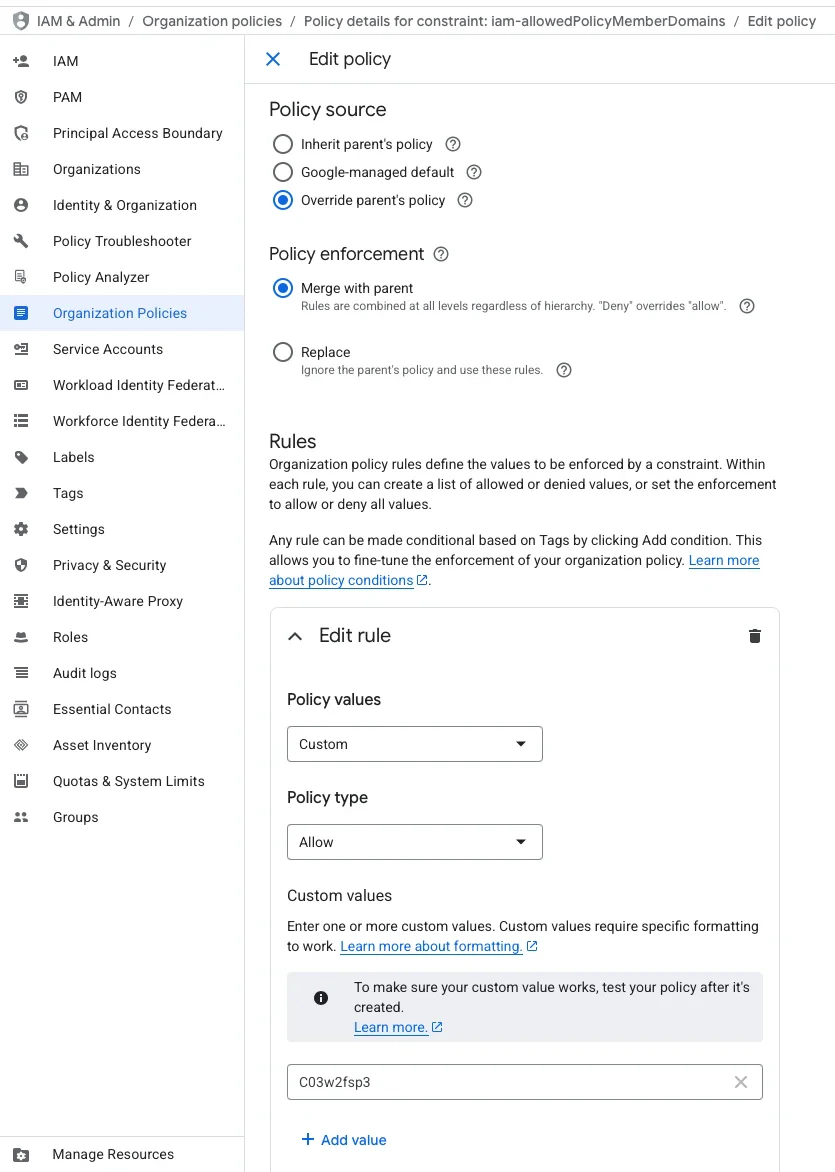
iam.allowedPolicyMemberDomains constraint, you need to add an exception for Leanly’s directory ID: C03w2fsp3. 5
Copy the service account email
Copy the email address of the service account you just created — you’ll need it in the next step.
2. Connect the service account to Leanly
1
Open integrations
In your Leanly dashboard, go to Integrations, select Google Cloud, and click Connect Account.
2
Acknowledge the setup
Confirm that you have created the operator service account. This will reveal the service account input field.
3
Provide the service account email
Paste the service account email you copied and click Connect Account.